WinForm
[C#/Visual Studio/WinForm] GraPhics를 이용하여 Drawing 해보기
연나연
2024. 7. 11. 14:46
1. GDI가 무엇이냐
Windows 초창기 부터 그래픽 장치 인터페이스(GDI) API를 제공 했었는데요, Windows XP 운영체제부터 Windows GDI+를 사용할 수 있게 되었습니다. GDI+는 GDI에 비해 그라데이션 브러쉬 및 알파 블렌딩과 같은 새로운 기능이 추가되었고, 친숙한 개체지향 스타일로 각종 기능을 사용할 수 있게 되었습니다.
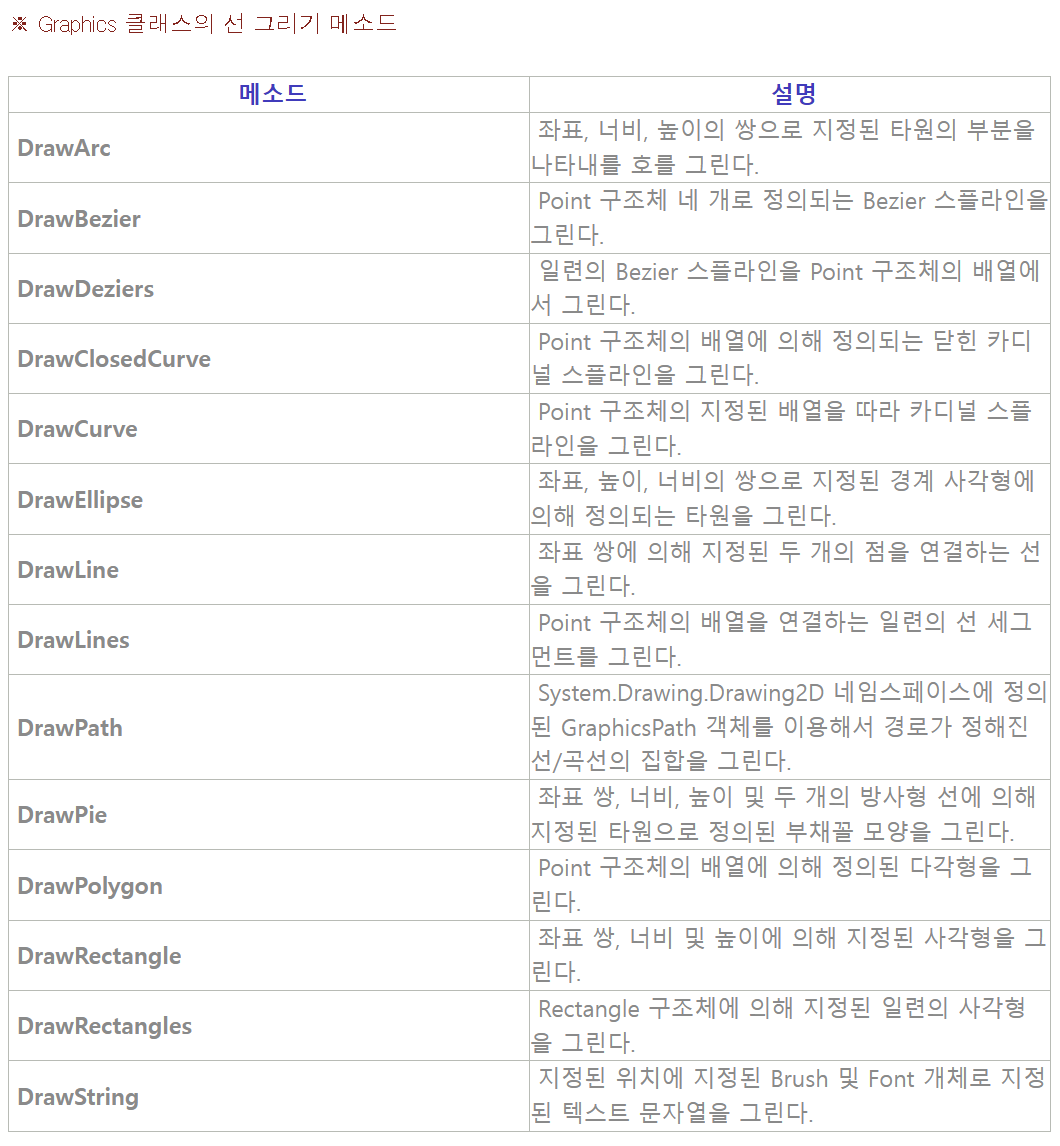
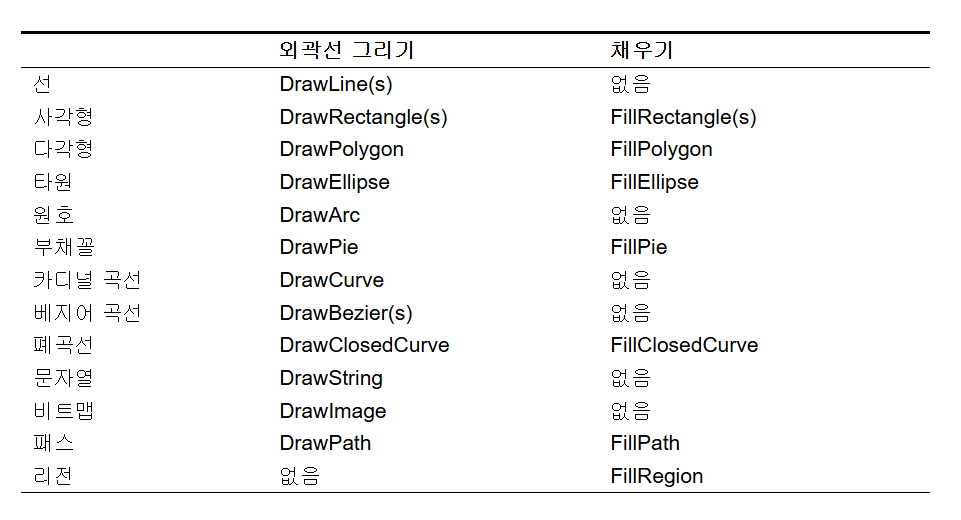
Graphics클래스에 정의된 렌더링 메소드들의 매개변수로 Pan객체를 넘겨 줌으로써 원하는 선을
그릴 수 있다. (Graphics는 다양한 선을 그리는데 사용하는 메소드를 지원 한다.)
2. 코드 및 결과
바로 코드 작성하며 사용해봅시다.
using System.Drawing;
using System.Windows.Forms;

namespace WinForm1_Drawing
{
    public partial class Form1 : Form
    {
        public Form1()
        {
            InitializeComponent();
            // Paint 이벤트에 DrawLineFunc 추가
            this.Paint += new PaintEventHandler(this.DrawLineFunc);
        }

        public void DrawLineFunc(object sender, PaintEventArgs e)
        {
            Graphics gp = e.Graphics;

            // 검은색 펜을 만든다.
            Pen blackPen = new Pen(Color.Black, 1);

            // 선 끝점의 좌표를 만든다.
            int x1 = 10;
            int y1 = 10;
            int x2 = this.ClientSize.Width-10;
            int y2 = 10;

            // 화면에 선을 그린다.
            gp.DrawLine(blackPen, x1, y1, x2, y2);
        }
    }
}
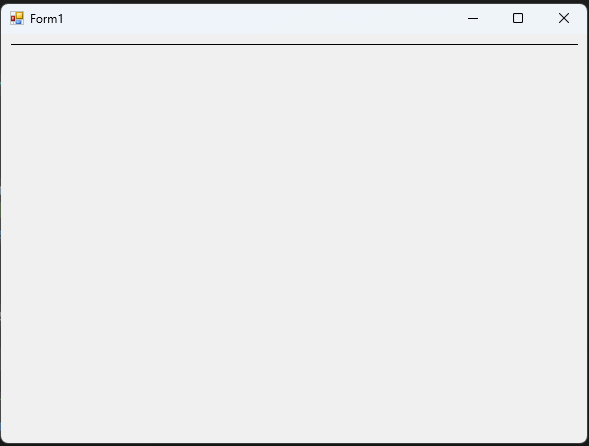
이렇게 코드를 작성하면 아래와 같은 화면이 출력됩니다.
위에 있는 가로줄 보이시죠?
이제 이런 식으로 사각형박스도 만들어보고 이것 저것 활용해보겠습니다.
3. 활용
저는 사각형 그리기, 삼각형 그리기, 원 그리기, 텍스처 사용하기 이렇게 4가지를 연습해봤습니다.
using System;
using System.Drawing;
using System.Windows.Forms;
using System.Drawing.Drawing2D;
using System.Diagnostics;

namespace WinForm1_Drawing
{
    public partial class Form1 : Form
    {
        public Form1()
        {
            InitializeComponent();

            this.labelName.Text = "연나의 도형 그리기";

            this.labelName.Location = new Point(40, 25);
            this.buttonRectangular.Location = new Point(220, 20);
            this.buttonTriangle.Location = new Point(this.buttonRectangular.Right + 30, 20);
            this.buttonCircle.Location = new Point(this.buttonTriangle.Right + 30, 20);
            this.buttonTexture.Location = new Point(this.buttonCircle.Right + 30, 20);

            // Paint 이벤트에 DrawLineFunc 추가
            this.Paint += new PaintEventHandler(this.DrawLineFunc);
            this.buttonRectangular.Click += new EventHandler(this.buttonRectangular_Click);
            this.buttonTriangle.Click += new EventHandler(this.buttonTriangle_Click);
            this.buttonCircle.Click += new EventHandler(this.buttonCircle_Click);
            this.buttonTexture.Click += new EventHandler(this.buttonTexture_Click);
        }

        public void DrawLineFunc(object sender, PaintEventArgs e)
        {
            Graphics gp = e.Graphics;

            // 상단 검은 줄1
            Pen blackPen = new Pen(Color.Black, 1);
            gp.DrawLine(blackPen, 10, 10, this.ClientSize.Width - 10, 10);
            gp.DrawLine(blackPen, 10, 50, this.ClientSize.Width - 10, 50);

            // 안채운 사각형 테두리가 될 아이
            gp.DrawRectangle(blackPen, 10, 80, this.ClientSize.Width - 20, this.ClientSize.Height - 90);

        }

        private void buttonRectangular_Click(object sender, EventArgs e)
        {
            // Graphics 객체를 생성
            Graphics graphics = this.CreateGraphics();

            // 노랑 채운 사각형
            SolidBrush brush = new SolidBrush(Color.LightGoldenrodYellow);
            graphics.FillRectangle(brush, 90, 120, 100, 100);

            // 핑크 안채운 사각형
            Pen pinkPen = new Pen(Color.HotPink,5);
            graphics.DrawRectangle(pinkPen, 50, 100, 80, 50);
        }

        private void buttonTriangle_Click(object sender, EventArgs e)
        {
            // Graphics 객체를 생성
            Graphics graphics = this.CreateGraphics();

            // 파랑 채운 삼각형
            SolidBrush brush = new SolidBrush(Color.DeepSkyBlue);
            // 삼각형 그리기 위한 포인트 배열 생성
            Point[] point1 = new Point[]
            {
                new Point(280,110), new Point(220,300), new Point(300,250)
            };
            graphics.FillPolygon(brush, point1);

            // 주황 안채운 삼각형
            Pen pen = new Pen(Color.Orange,3);
            // 삼각형 그리기 위한 포인트 배열 생성
            Point[] point2 = new Point[]
            {
                new Point(310, 130), new Point(310, 240), new Point(360, 240)
            };
            graphics.DrawPolygon(pen, point2);
        }

        private void buttonCircle_Click(object sender, EventArgs e)
        {
            // Graphics 객체를 생성
            Graphics graphics = this.CreateGraphics();

            // 초록 채운 원
            SolidBrush brush = new SolidBrush(Color.Green);
            graphics.FillEllipse(brush, 420, 230, 150, 100);

            // 보라 안채운 원
            Pen pen = new Pen(Color.MediumPurple,4);
            graphics.DrawEllipse(pen, 510, 200, 50, 50);

            // 핑크 안채운 원
            Pen pinkPen = new Pen(Color.LightPink, 6);
            graphics.DrawEllipse(pinkPen, 410, 150, 20, 200);
        }

        private void buttonTexture_Click(object sender, EventArgs e)
        {
            // 백그라운드 이미지 객체를 생성한다.
            Image imageCat = new Bitmap(Properties.Resources.cat);
            TextureBrush textureBrush = new TextureBrush(imageCat);

            // Graphic 객체 생성
            Graphics graphics = this.CreateGraphics();

            // 이미지를 폼 크기에 맞게 그린다.
            graphics.DrawImage(imageCat, this.ClientRectangle);

            // 텍스트
            SolidBrush textBrush = new SolidBrush(Color.Pink);
            graphics.DrawString("Texture Brush~!!!", new Font("굴림체", 60, FontStyle.Bold), textBrush, this.ClientRectangle);
        }
    }
}
▼ 결과화면
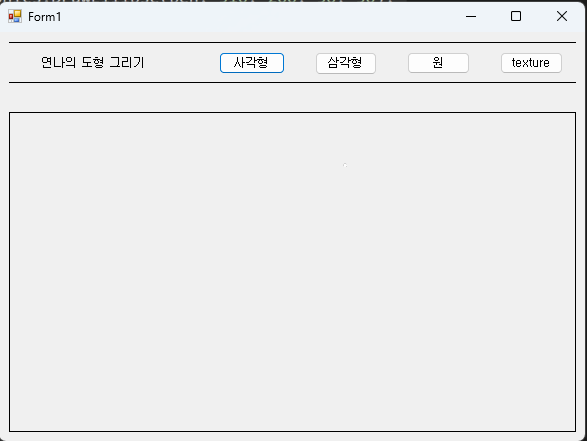
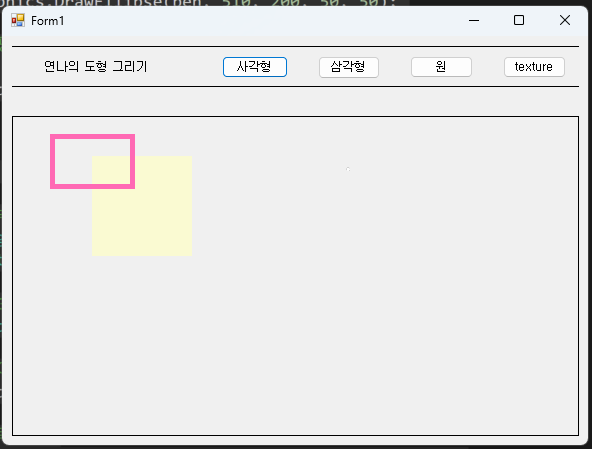
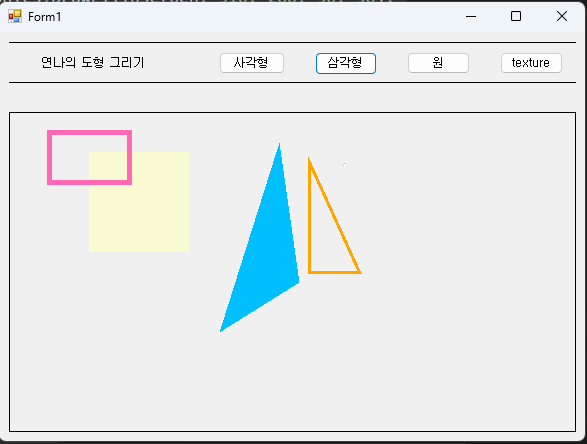

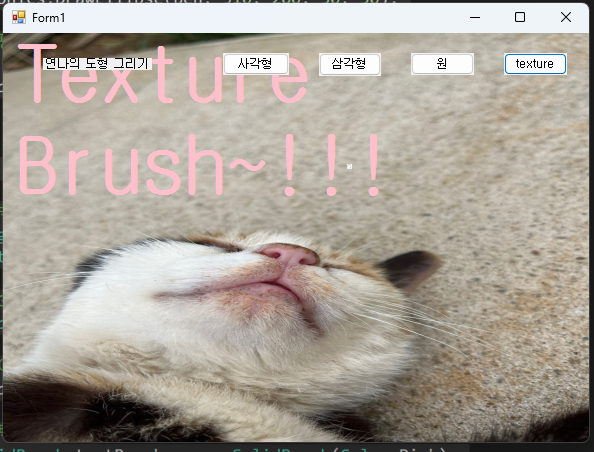
다 만들고보니 저 고양이 사진을 없애려면 무조건 재 실행을 해야 한다..
texture버튼을 한 번더 누르면 고양이 사진이 없어지고, 배경이 원래로 돌아가게 해야겠다..